
Keep the story
within reach.
Record a rolling live timeline. Review recent footage in the browser and find the moment you want to use.
Rolling DVR + HLS previewFROM LIVE FEED TO ON AIR
Record live. Find the moment. Put it on air. One connected workspace for DVR, fast clipping, desktop and portrait channels, animated branding and streaming destinations.
Newsrooms · TV channels · Digital-first teams
THE SOFTWARE, IN ACTION
A closer look at what your team can do.
Eight short guides, with narration and captions.
0:14 · English narration · Captions available
Open video directly ↗Keep recording while you review. Choose your timeline, mark IN/OUT, step through footage and collect the sections that matter.
Keep recording while you review the live DVR preview. Open the trim window, choose your timeline and mark In and Out. Jump to either mark, step through the footage and collect the moments you want. Your next story starts right here.
Recorded with the actual software. Branding examples use a demonstration workspace and sample artwork. Videos and narration are hosted directly on the MSLiveBox server.
LESS HANDOFF. MORE CONTROL.
Give your team a connected path from incoming video to the channel rundown, with the tools to preview, select and brand every clip.
Record a rolling live timeline. Review recent footage in the browser and find the moment you want to use.
Rolling DVR + HLS previewMark IN and OUT, preview the range and follow export progress. Then download, play now or queue your clip next.
Trim + export + encoder handoffMix clips and live inputs, add branding and send your channel to multiple YouTube, Facebook, Instagram Live and custom-server destinations.
Branded playout + multiple outputs LOCAL MEDIA INGESTRECEIVE. UPLOAD. GO ON AIR.
Download a clip received through WhatsApp or WeTransfer, then upload it from your system straight to the encoder's media library or playlist.
Download the received clip to your system.
Keep routine clip preparation and branding in one workspace.
LIVE DVR AT THE CORE
Keep the channel's live feed recording while your team reviews programmes, selects moments and prepares branded clips for the next broadcast or publishing step.
Actual trim workspace · timeline presets, marked ranges and overlay preview
Explore the preview windows
Latest loads a 30-minute timeline, with the preview positioned 15 minutes behind the live edge.
Return to your marked points to review and refine the selection.
Mark multiple IN/OUT ranges, add them as segments and merge the chosen sections into a single export.
Apply animated MOV overlays with alpha transparency, including animated logos, brand marks and exclusive bands, while exporting the clip.
Send the finished branded clip to your encoder or download it for your other publishing channels. Reduce repeat trimming and branding work in a separate editor.
DESKTOP + MOBILE CHANNELS
Run a landscape channel for desktop and TV viewing, or create a portrait channel for mobile-first programming. Upload your vertical and Reels-format files, then work with the same familiar playlist, overlays and destination controls.
Watch the format walkthroughANIMATED L-BAND + CLEAR AREA GUARD
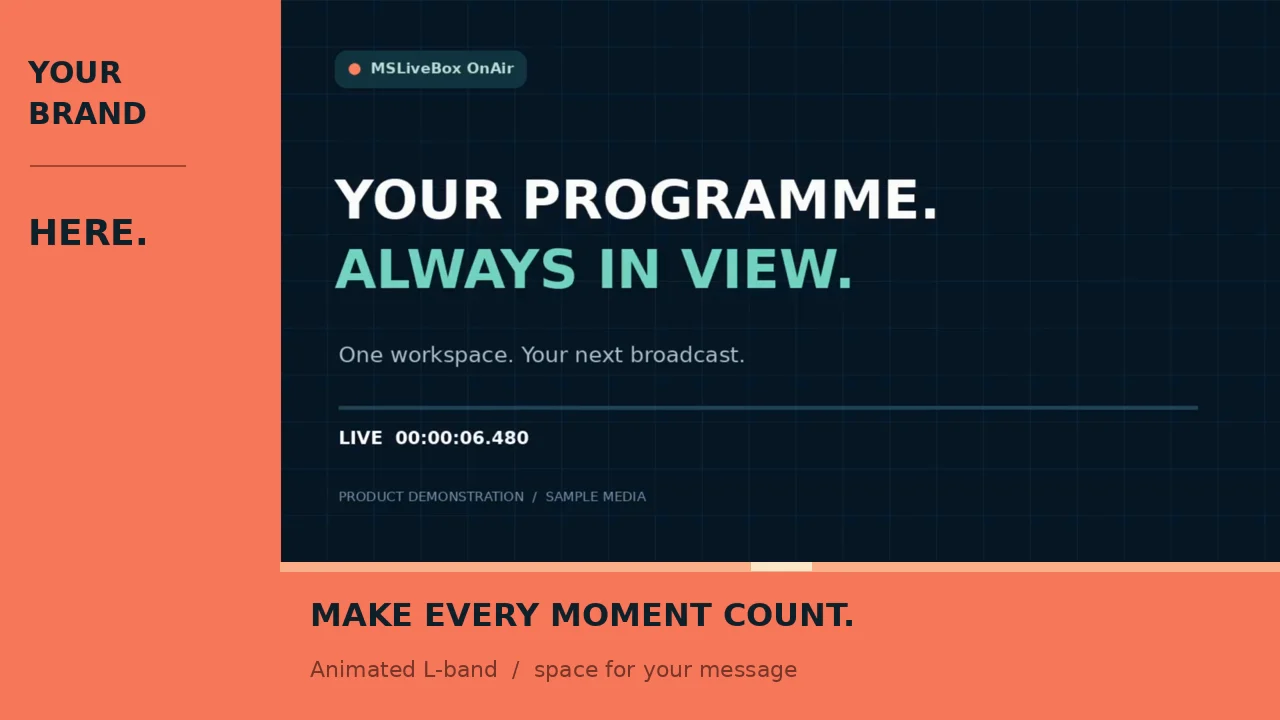
Your artwork deserves room. Animated L-bands play with fade-in and fade-out transitions while the main programme smoothly resizes into its clear area and returns as the band finishes.
 Watch the animated transition
FROM TRIM TO THE NEXT SCREEN
Export Clip creates a downloadable MP4. For compatible recordings without overlays, the fast path copies the original video and audio. Timestamp resets are handled by joining the valid recorded intervals without another encode.
Load to Encoder (E) takes your selected ranges directly into a clean HLS segment workflow. Pick an encoder, then Queue Next or Play Now—without waiting for an MP4 render. Apply channel branding in the encoder.
Watch the trim-to-encoder walkthroughOne verified Windows test, without overlays, including a recorder timestamp reset. Actual speed depends on footage, hardware and storage; overlay exports require rendering.
Try your workflow in a demo →A CLOSER LOOK
Prefer a closer look at the controls? Explore these detailed interface views alongside the narrated walkthroughs.
Select or hover a feature to see its controls. Or follow the automatic tour.
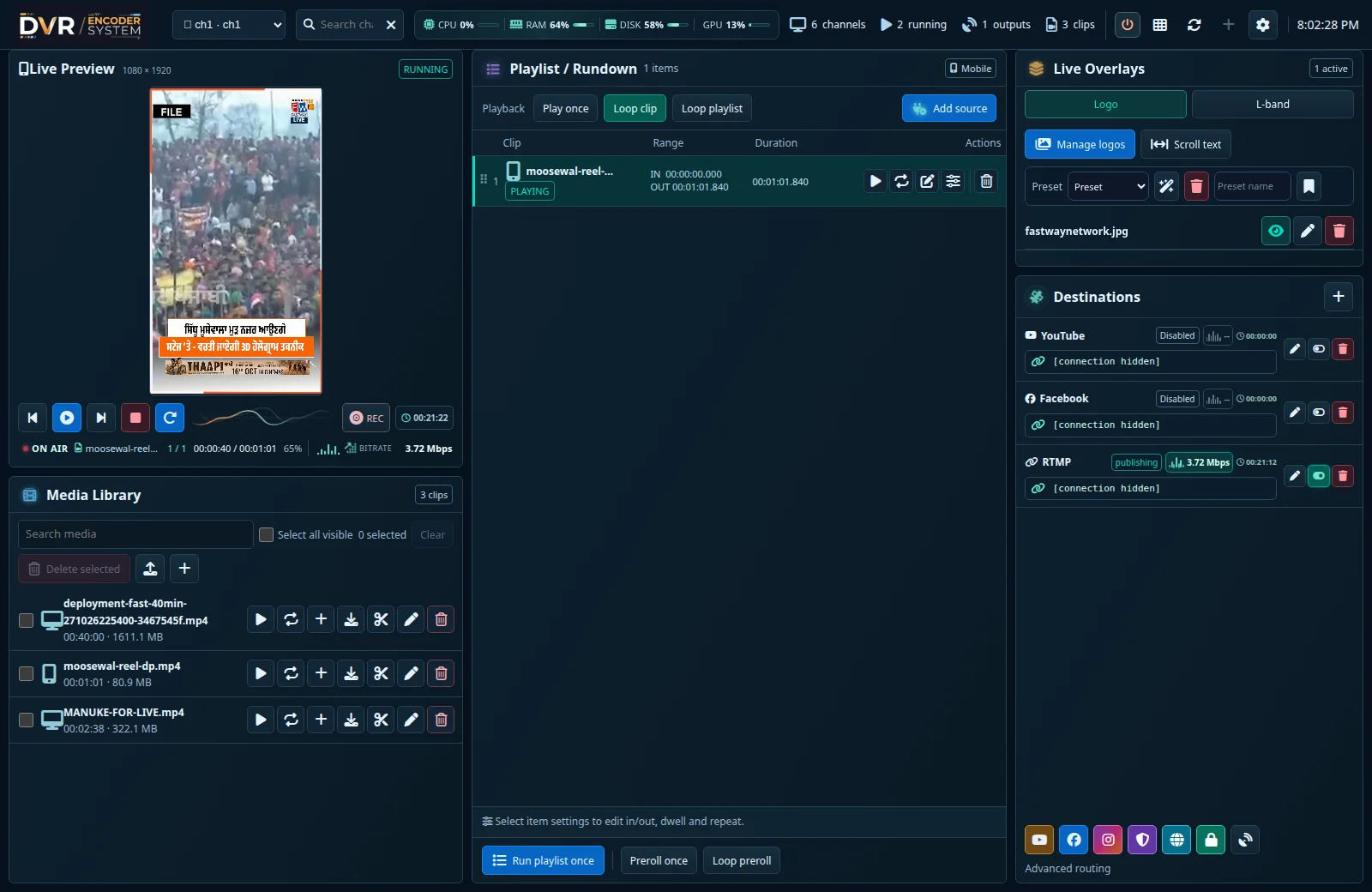
Preview, playlist and production controls stay together, so the next action is always close.
Walk through it with usPreview the output, build the rundown and manage overlays and multiple destinations, including several YouTube and Facebook channels and custom streaming servers.
01 / 06LIVE SOURCE TAKEOVER
A breaking update does not have to wait for the playlist. Add multiple live inputs, choose a source and its time on air, then take it when it is ready.
Acquire and buffer the next source.
Run it for your chosen duration.
The master output stays running.
FROM MOMENT TO MESSAGE
Follow a breaking update from the live feed to a branded clip in your channel playlist.
Keep incoming content available in a rolling DVR timeline, ready to review.
Set IN and OUT, preview the selection and export the segment you need.
Position branding layers and save reusable overlay presets for your workflow.
Add the clip to a rundown, set its playback range and route your channel output.
01 / Record — keep the incoming feed available in the rolling DVR timeline.
FROM EXPORT TO ON AIR
Follow export progress at the top of the trim window. Once the clip is complete, keep a local copy or send it straight to the encoder you choose.
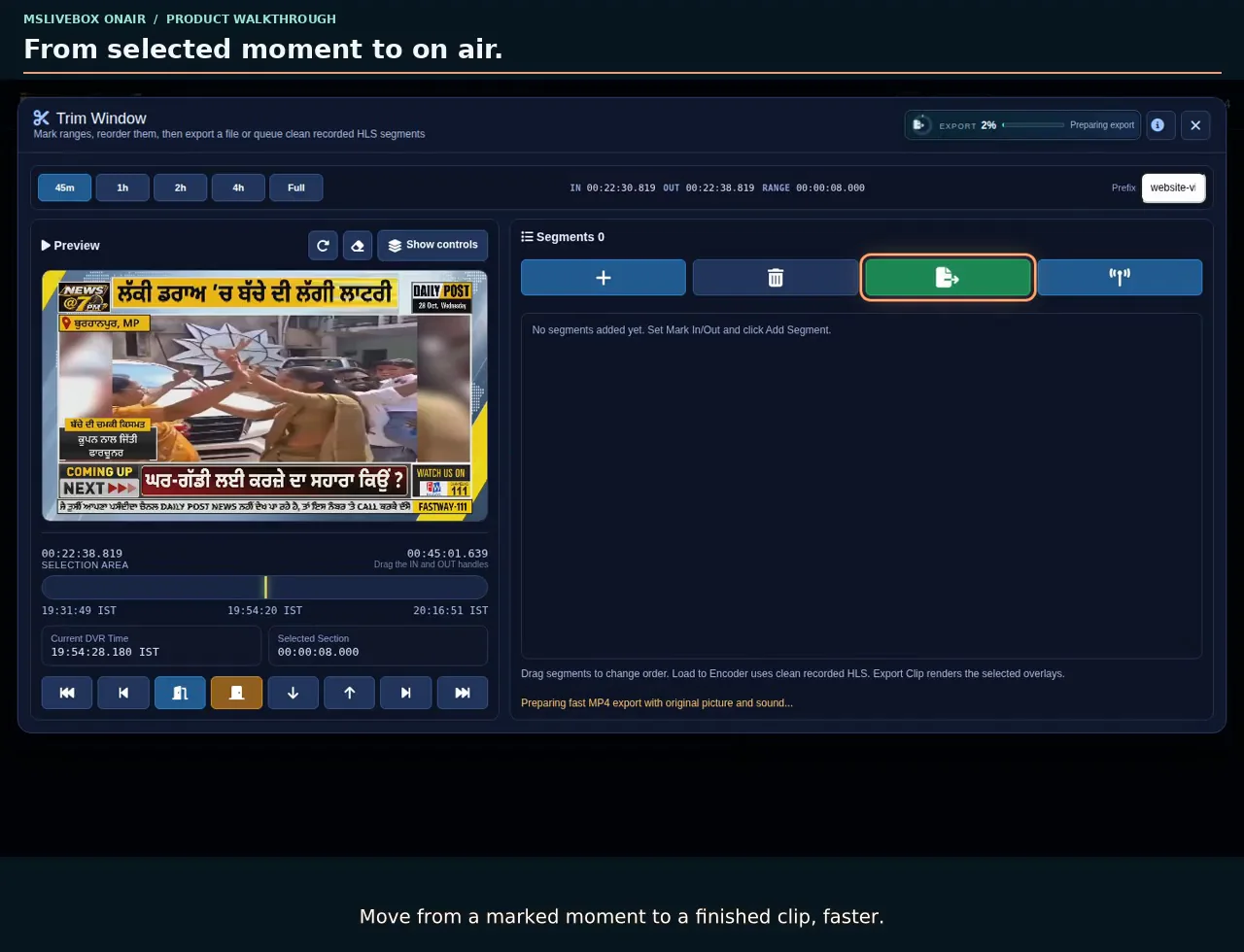
One completed clip. A choice of encoders. Three useful next steps.
Save the finished trimmed clip to your local system for use in your own production workflow.
Select an encoder and take the exported clip to air immediately, replacing its currently playing item.
Let the current clip finish. Your newly trimmed clip plays immediately after it, rather than waiting at the end of the playlist.
Actual playlist editor · saved IN/OUT points and selected duration
PLAY THE PART YOU NEED
Set IN and OUT when adding or editing a playlist item. Save the selected duration in the rundown and the encoder plays only that section of the file.
READY FOR YOUR DAILY RUNDOWN
From a local news desk to a multi-channel operation, keep the essentials within the same workspace.
Discuss your setupPlay once, repeat a clip or loop a playlist. Set a playlist item's IN/OUT range without re-exporting; the encoder plays only that selected section.
Manage logo visibility, position and size. Use presets to bring familiar compositions back into view.
Upload local clips to the media library or playlist. Preview, download, rename or delete them, with playback-range and channel overlay controls in the encoder.
Check channel uptime and live output bitrate, plus each destination's publishing status and measured live bitrate.
MULTIPLE DESTINATIONS. ONE CHANNEL.
Send the same channel output to multiple destinations at the same time. Add several YouTube channels, several Facebook channels, Instagram Live and your own custom streaming servers to one encoder.
Configure your own endpoints. Instagram Live requires an eligible account and its current Live Producer server and stream key.
Inputs, streaming outputs & browser preview
YOUR TEAM. YOUR WORKFLOW.
Bring your sources, channel requirements and daily workflow. We’ll show you how OnAir fits.
Review live coverage, create selected clips and prepare a branded channel rundown.
Rework live moments into clips and manage output to your streaming destinations.
Manage playlists, repeat content and check playout and delivery status in one workspace.
LET’S PUT YOUR WORKFLOW ON AIR
Tell us what you broadcast, where you want to reach viewers and how your team works. We’ll build a personal walkthrough around your sources, formats, branding and destinations.
Yes. Upload supported vertical video files and play them in a 9:16 portrait channel, or create a 16:9 desktop channel. This describes playback of your video files; it does not automatically download Instagram Reels or publish posts to Instagram.
The clear area guard shrinks and repositions the main video to suit the L-band, with animated return and fade transitions. Use automatic fit or custom size and position. Arrange bands in a playlist, set loops and choose start and repeat timing.
Compatible no-overlay MP4 exports copy the existing picture and sound. Recorder timestamp resets are joined without an extra encode. Use Load to Encoder for clean HLS segments when you want selected moments in the rundown without waiting for an MP4. Export Clip remains the route for a portable downloadable file.
Yes. The Browser source captures a page with animation and audio, with capture-size and frame-rate controls. Prepare and interact with that same page off air before taking it into the channel output.
Use an eligible Instagram account with Live Producer access and enter the server URL and stream key supplied for that live session. Destination availability and platform requirements depend on your account. OnAir also supports YouTube, Facebook and custom streaming destinations.
Keep the channel’s live feed recording while you review recent content. Latest loads a 30-minute timeline and initially positions the preview 15 minutes behind the live edge. You can also choose 45-minute, one-hour or two-hour windows, mark IN/OUT and jump back to either marked point.
Yes. Download the received clip to your system, then upload supported video to the encoder media library or straight into a playlist. Use the whole clip or set IN/OUT playback points, and apply channel logo overlays from the encoder workspace. A separately trimmed or manually encoded copy is not required before upload.
Yes. Choose IN and OUT in the playlist range editor and save those playback points. The encoder plays only the selected section, without creating another exported clip. Play-once, loop-clip and loop-playlist modes remain available.
The live-source workflow supports HTTP, HTTPS, RTMP/RTMPS, UDP, SRT, YouTube, Facebook and Browser inputs with a chosen time on air. The current clip continues while the next source is prepared; once ready, the source is taken for its selected duration, then playback returns to the playlist while the channel output stays running.
Mark multiple IN/OUT selections, add them as segments and merge them into one export. Apply animated MOV overlays with alpha transparency, such as logos and exclusive bands, during export. Reuse the branded clip in encoder playlists or download it for your other publishing workflows.
Choose what happens next: download the finished clip to your local system, select an encoder and use Play Now to replace its currently playing item, or choose Queue Next to play the trimmed clip immediately after the current item finishes. Export progress remains visible at the top of the trim window while the clip is being prepared.
Yes. Add separate destinations for several YouTube channels, several Facebook channels and your custom streaming servers. Send the same channel output to them at the same time, with individual destination settings and enabled states. RTMP/RTMPS, SRT and UDP destination options are available, with HLS preview in the browser.
Request a quote for your planned channels and deployment. Sales can walk you through current licensing, hardware requirements and support options.
Share your input sources, output destinations, channel count and clipping needs when requesting a demo. This gives us a useful starting point for a tailored walkthrough.